
Private AI for
Canadian teams.
A workspace for your project files
Read briefs and follow citations in one place. Try it in your browser with a sample project and example replies.
 Open sample workspace
Work with the source in front of you
The sample workspace follows a team printing a photobook. Open a citation to see where its paper estimate comes from.
- Project workspace
- Open the sample project and read the production brief beside the conversation.
- Open workspace
- Project folders
- Keep the brief, drafts, and working notes together as the project changes.
- English and French
- Choose English or French for the workspace menus and controls in Settings.
- PDF citations
- Select a citation to open the PDF at the highlighted passage.
- Workspace backups
- Export chats and attachments together and restore them in another browser.
Taiga in practice
-

Healthcare
Read the research behind clinic protocols.
-

Engineering
Check field notes against project drawings.
-

Law
Trace an argument to the ruling.
-

Finance
Check figures against the original filings.
-

Corporate strategy
Turn team updates into a board brief.
Project files
Open Production to read the print brief, or look in Research for the notes from the crossing.
Open gallery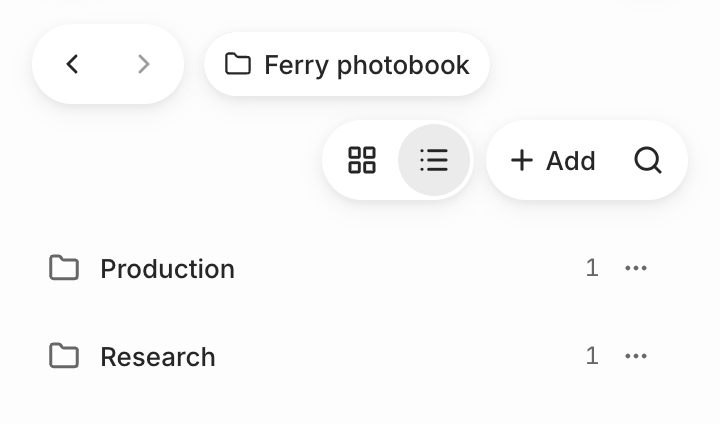
Workspace search
Start with “ferry” to find the project, its brief, and the conversation about the print run.
Open search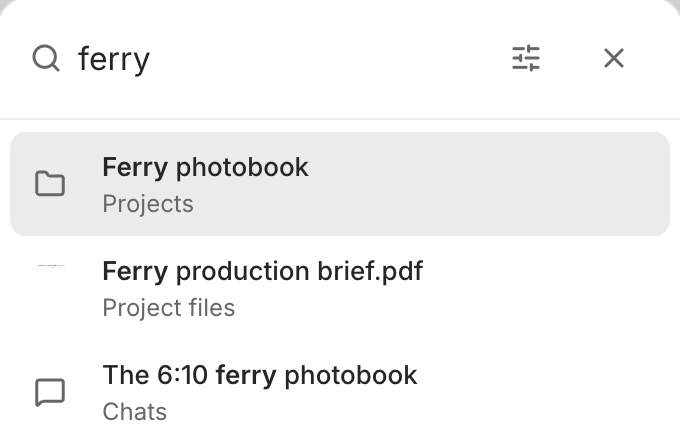
Your workspace data
Choose which chats to keep in your browser. Temporary chats stay out of your saved history.
Explore security
Common questions
Are the answers in this preview generated live?
The preview uses prepared answers. You can search the sample project, open its PDFs, and follow citations to the original passages.
How do I check where an answer came from?
Select a citation in the sample chat. Taiga opens the PDF to the cited page and highlights the passage beside the conversation.
Can I find a conversation if I forget its title?
Open workspace search and type a phrase you remember. Choose Messages to narrow the results, then select a match to jump to that part of the chat.
Will my chats be here when I come back?
To keep chats between visits, open Privacy in Settings and turn on “Save history in this browser”. Temporary chats stay out of saved history.
How do I move my workspace to another browser?
Open Privacy in Settings and choose “Export or import…” under Workspace backup. Export a backup, then use the same option in the other browser to import it.
Can I use the workspace in French?
Yes. Choose Français in the workspace’s language settings to see menus and controls in French.
Can I use Taiga on my phone?
Yes. The web interface adapts to touch, with a navigation drawer and a full-screen file preview on small screens. Each browser keeps its own workspace.